
Update User Information
This will include changes to current information and/or adding phone numbers and/or email associated with the account.
Update User Profile
- To update your First and/or Last name click the EDIT button.

- Update your First and/or Last name. Username is not editable.
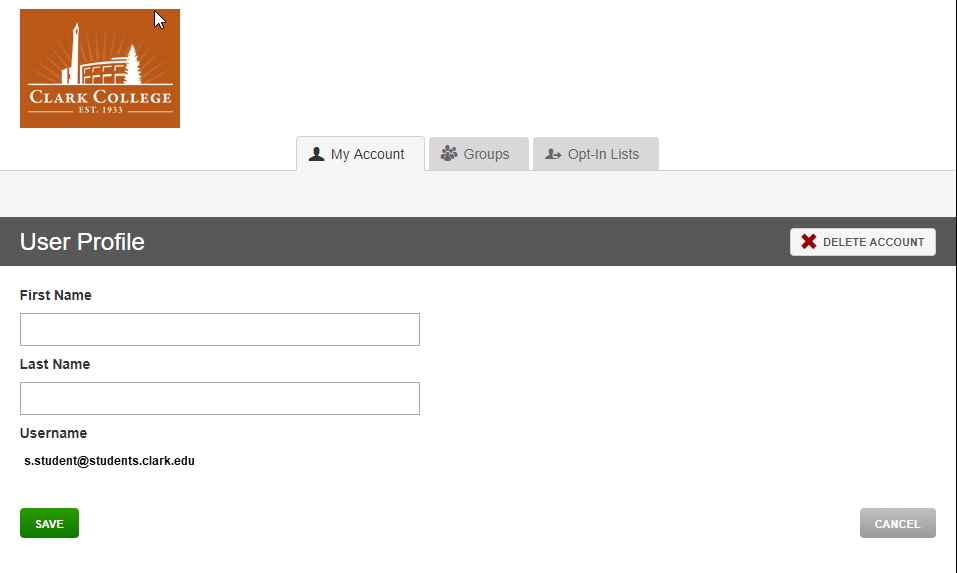
- Click Save. If you do not want to save your changes click cancel and it will revert any changes.
Change Password
- To Change your password click the CHANGE button.

- Enter your New Password. Then re-enter your New Password.
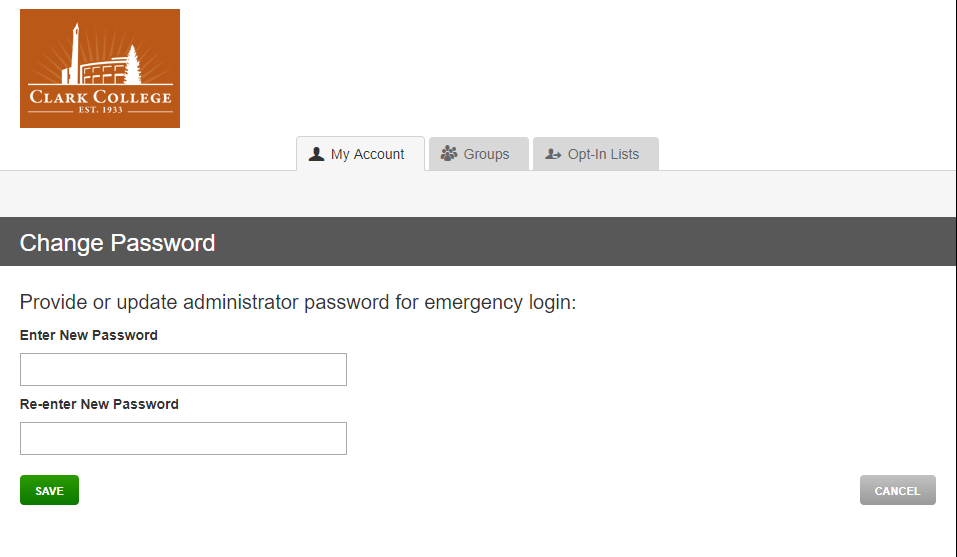
- Click Save. If you do not want save your changes click cancel and it will revert any changes.
Add a Mobile Phone Number
- Click the Add button next to the Mobile Phones header.
- Follow the directions 2 through 4 in the section titled Updating Mobile Phone (see #3).
- Check your My Account Dashboard to make sure the correct number(s) appear
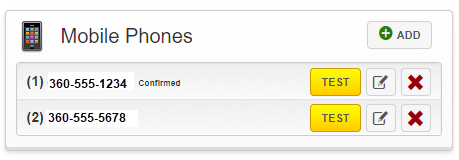
Updating Mobile Phone Information
- Click the edit button associated with the corresponding Mobile Phone number.
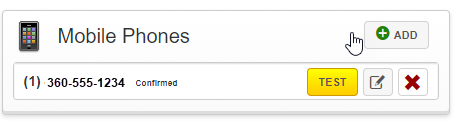
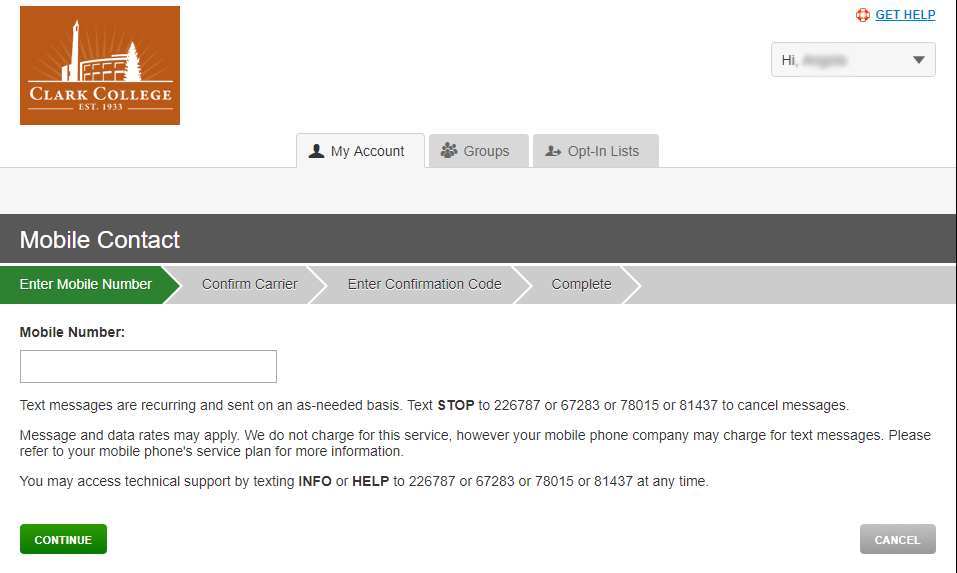
- Enter the your Mobile Number. Click Continue.
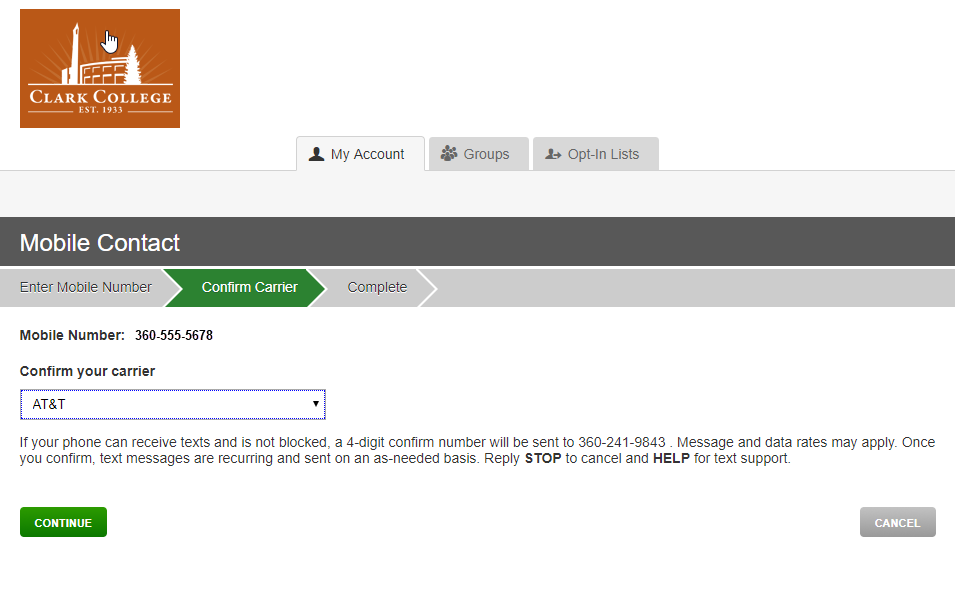
- Confirm your mobile phone Carrier. Click Continue.
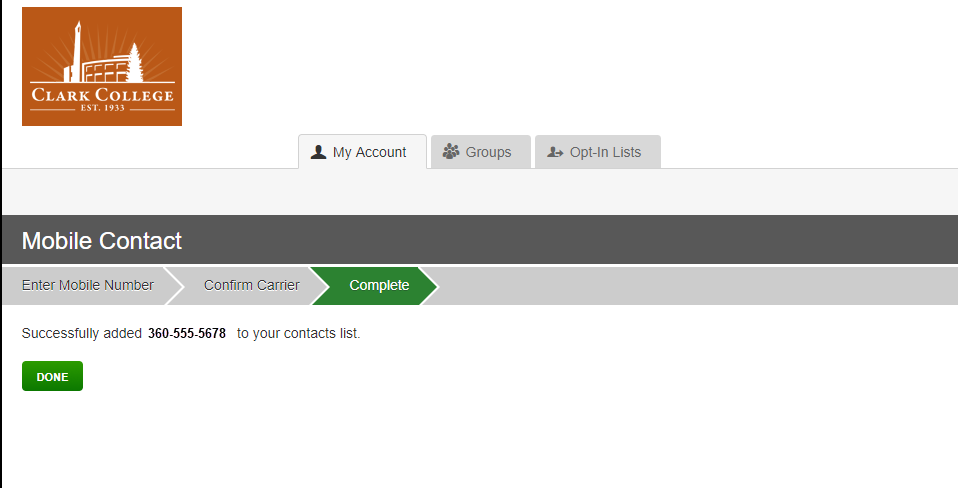
- The message displayed should read: "Successfully added [your mobile number] to your
contacts list." Click Done.
Delete a Mobile Phone Number
- Click the Delete button
- A pop-up will appear asking if the user is sure that about deleting the Mobile Contact.
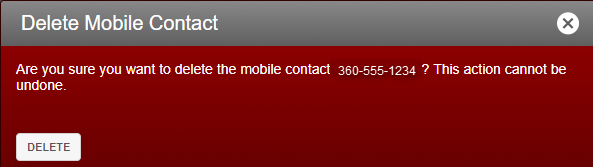
- Clicking delete will permanently delete the mobile number.
- Clicking the (X) button located at the top right will cancel out the action of deletion
Add a Preferred Email Address
*Note: The registration email will always be a Clark email address. The Clark email address provided will never be editable or have the option to be deleted.
- Click the Add button
- Enter your Preferred Email
-
Check your My Account Dashboard to make sure the number/s appear
Update a Preferred Email Address Information
- To update your Preferred Email Address click the edit button next to your currently set preferred email.
- Update your Preferred Email to the email that you would now like to receive RAVE notifications.
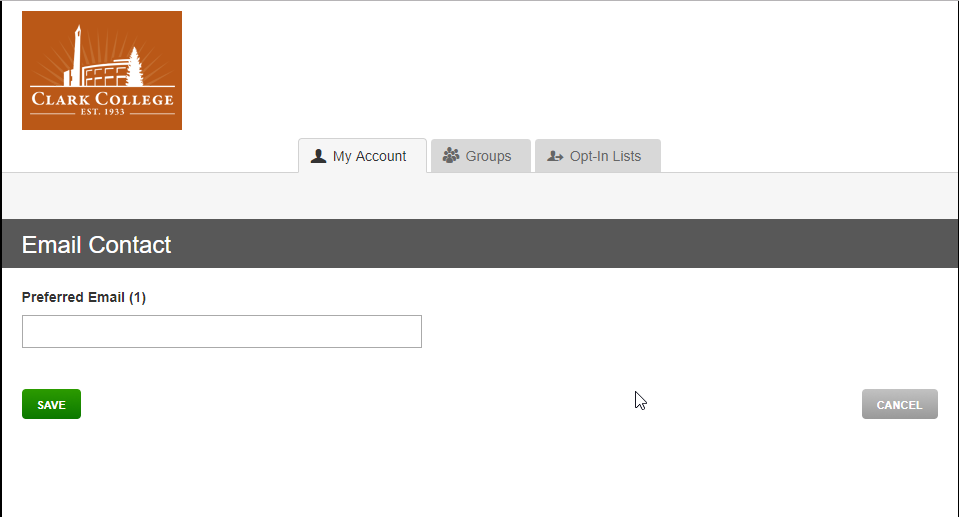
- Click Save. If you do not want save your changes click cancel and it will revert any changes.
Delete a Preferred Email Address
- Click the Delete button.
- A pop-up will appear asking if the user is sure that about deleting the Mobile Contact.
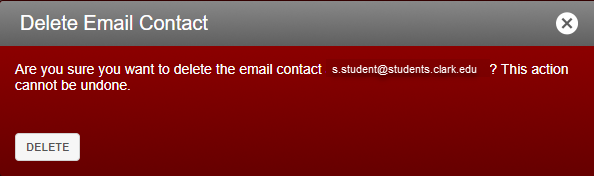
- Clicking delete will permanently delete the mobile number.
- Clicking the (X) button located at the top right will cancel out the action of deletion